Back to Blog



Monica Jansen
Jul 8, 2026
How To Change the Root Password: A Step-By-Step Guide
Your root password plays a vital role in protecting your server against unauthorized access and malicious activities. To maintain complete control over your website and keep it secure, you need to know how to change your root password.
With that in mind, this guide will cover the following:
- What is a root password?
- Why you need to change your password
- How to change your root password
- Keeping your password secure
Read on to get all the details!
What is a Root Password?
In short, a root password grants you administrative access to your server. It allows you to log in as a root user and perform various important tasks, such as installing software, configuring system settings, managing users, and controlling system services.
In other words, your root password gives you complete control over your website. Anyone who can log in as a root user has the power to alter the configuration or even delete your entire site.
Naturally, it is crucial to keep this piece of information protected at all times.
Why You Should Change Your Root Password
When you initially set up a server, your hosting provider typically gives you a default root password. While changing it isn’t a requirement, keeping the preset password can pose a security risk, especially if it’s weak.
Therefore, replacing the default password with a unique and strong one helps protect your server from unauthorized access.
Additionally, certain situations require updating the root password to help you resolve security threats. This may include your sign-in information being compromised through a data breach or by a former administrator who still has the login details.
Furthermore, updating your root password on a regular basis is a good security practice. Namely, it reduces the window of opportunity for an attacker to crack the password and gain access.
How to Change Your Root Password
Whenever you wish to update your root password, you can do it by taking the following steps.
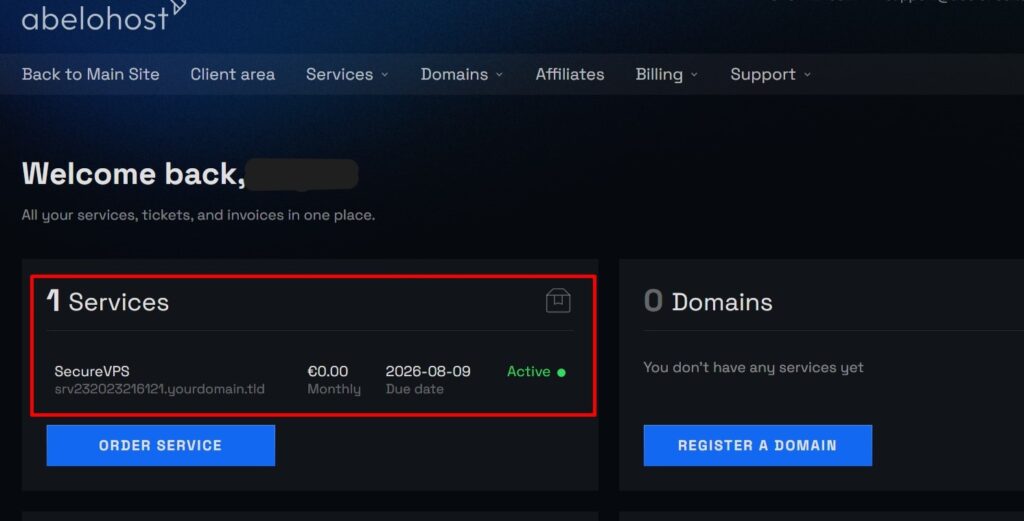
Step 1
After logging into your Client Area, click on your VPS in the Services tab.
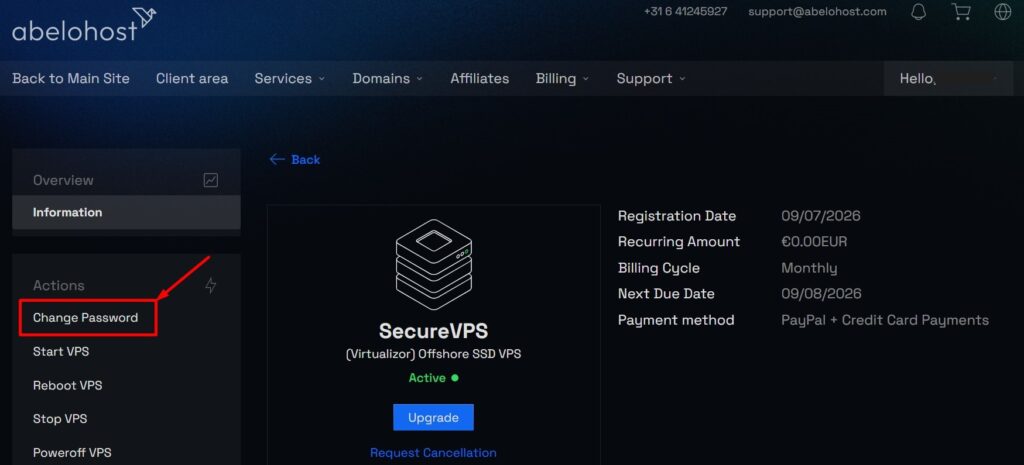
Step 2
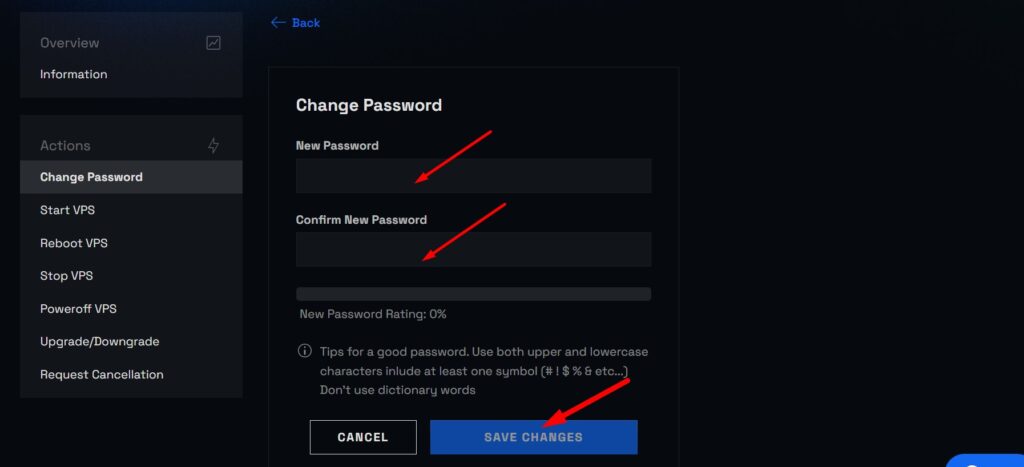
On the next page, go over to the Actions menu on the left, and choose Change Password.
Step 3
As the final step, enter the new password into the top field, then retype it below for confirmation. After that, click on the Save Changes button, and that’s it. Your new root password will be saved.
How to Keep Your Root Password Safe
Now that you know how to change your root password, we’ll share tips on how to keep it secure.
Use a Strong Password
Naturally, you want to choose a strong password each time you update it.
Longer Passwords
These work better than shorter ones since they increase the number of possible combinations, making them much harder to crack by brute-force attacks. Therefore, try to use at least 15 characters.
Complexity
Another factor to consider. For best results, you should use a combination of uppercase and lowercase characters, numbers, and special characters (e.g., @, #, $, %, &).
What To Avoid
Straightforward dictionary words and common phrases are a bad idea, since hackers often resort to dictionary attacks to crack passwords.
Likewise, steer clear of personal information like birthdays, anniversaries, and names of family members and pets. These are typically the first guesses an attacker will make.
Instead, the goal is to use a combination that’s unpredictable and difficult to guess.
Helpful Tools
Finally, if all this sounds too complicated, you can rely on password management software to help you create strong passwords with minimal effort.
Don’t Share It
Avoid giving out your root password to anyone who doesn’t absolutely need it. If you entrust administrative tasks to employees, ensure that they won't share the login details with others.
Don’t Write It Down
Although keeping your password on a sticky note might seem convenient, there’s always a risk of someone else finding it. Therefore, using a reliable password manager is far safer than leaving sensitive information on paper, where it can be easily accessed.
Update It Regularly
Even when you choose a solid password, you should still change it from time to time. The optimal frequency will depend on how strong the password is, but also on the security policies of your organization.
For instance, many companies require password updates every 30, 60, or 90 days.
Additionally, if your server has been recovered from a backup or after a security incident, you’ll want to change your root password. Doing so will ensure that any residual access from before the recovery won't carry over.
Similarly, if an employee who has the password leaves their position, changing it will help you maintain strict control over who has access.
Conclusion
Whether you experienced a security breach or wish to avoid it, knowing how to change your root password is essential. By following this guide, you’ll be able to perform this task smoothly and keep your website out of harm's way.
Finally, if you run into an issue when updating your password or have any questions, contact your hosting provider for assistance.
Author
Monica Jansen
Monica Jansen is a seasoned tech writer focused on web hosting and cybersecurity. She loves doing deep dives and whittling down difficult topics into simple and succinct concepts. Whether she is covering firewalls or different hosting plans, she always strives to provide clear guides that website owners of all skill levels can follow.
Add your comment
Get content delivered straight to your inbox



Your data.
Your choice.
Work with the best of the best — your projects deserve it.