Back to Blog



Monica Jansen
Jul 27, 2026
How to Create and Delete Subdomains in aaPanel
Managing the organization and functionality of a website is an essential part of running an online business. With that in mind, if you want to know how to create and delete subdomains in aaPanel, you'll find all the details in this guide.
Specifically, we’ll outline the following:
- What are subdomains
- Root domains vs subdomains vs subdirectories
- How to create subdomains
- How to delete them
Let’s begin!
Subdomains: What Are They?
A subdomain is an extension added to your domain name. Creating one allows you to obtain a separate web address without registering and paying for a new domain.
In practical terms, subdomains are tools for building distinct units within a website. As such, they can help you organize your site into meaningful sections and offer your visitors an online space that's easy to use and navigate.
While subdomains can serve different purposes, here are some common examples:
- Adding sections such as a blog, support center, product store, and others to a website
- Targeting multiple countries or languages, where each subdomain caters to one location
- Testing new features before they affect the main website
- Creating customer portals where users can log in and access personalized information
- Offering services and content aimed at a new audience
The Difference Between a Root Domain, Subdomain, and Subdirectory
When building a website, you need to register a domain name. It’s a sequence of words that allows everyone to reach your site without memorizing its IP address.
Root Domain
A root domain represents the entire website and, as such, contains any existing subdomains and subdirectories. That is also why you should change your root password regularly to keep everything safe.
Subdomain
The most famous example of a root domain is google.com.
On the other hand, when creating a subdomain, you’re adding an independent section to your website.
For instance, some of Google’s subdomains are maps.google.com and play.google.com. As you can see, the subdomain always comes before the domain name.
Subdirectories
Lastly, subdirectories (also known as subfolders) are merely folders contained in a website that appear as pages. They follow a nested structure, meaning each subfolder can contain more subfolders.
Unlike subdomains, subcategories come after the domain name. For your reference, some of LinkedIn's subcategories are linkedin.com/jobs and linkedin.com/mynetwork.
Ultimately, both subdomains and subcategories can help you organize your website and simplify the navigation for your visitors, thus improving the overall user experience.
How to Create a Subdomain in aaPanel
With the basics covered, if you have an AbeloHost hosting plan, here are the steps that you need to take to create a subdomain in aaPanel.
Step 1
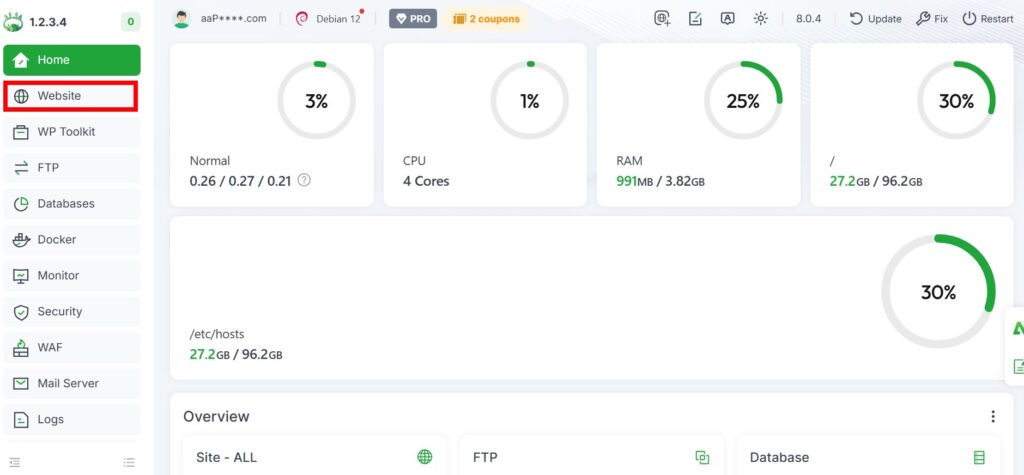
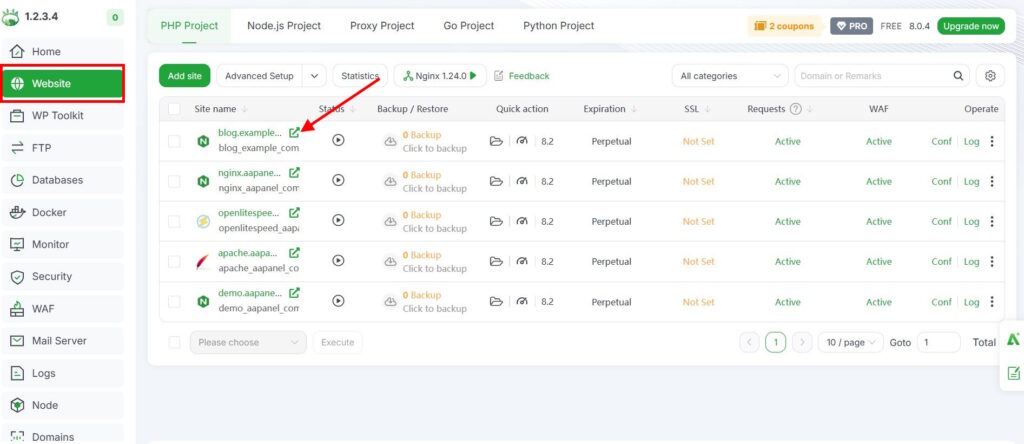
Once you log in to aaPanel, head to the Website section on the left side of the page.
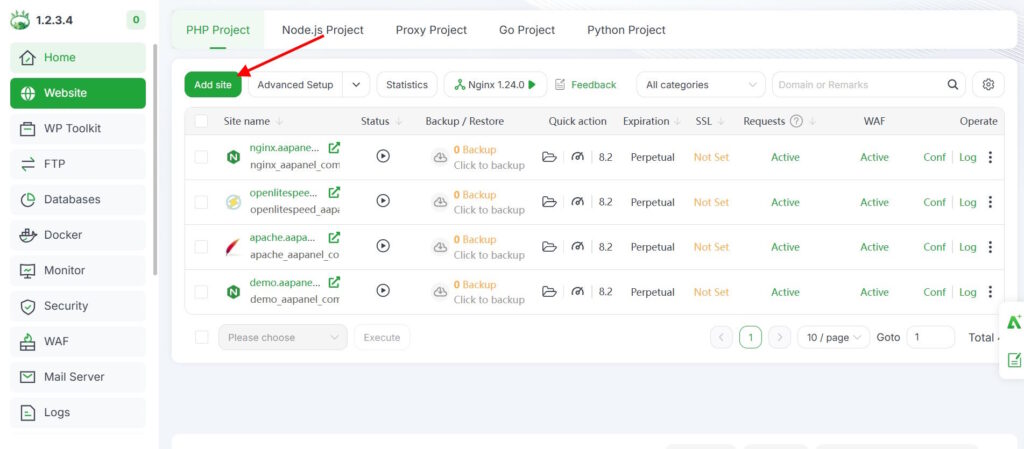
Next, click on the green Add Site button.
Step 2
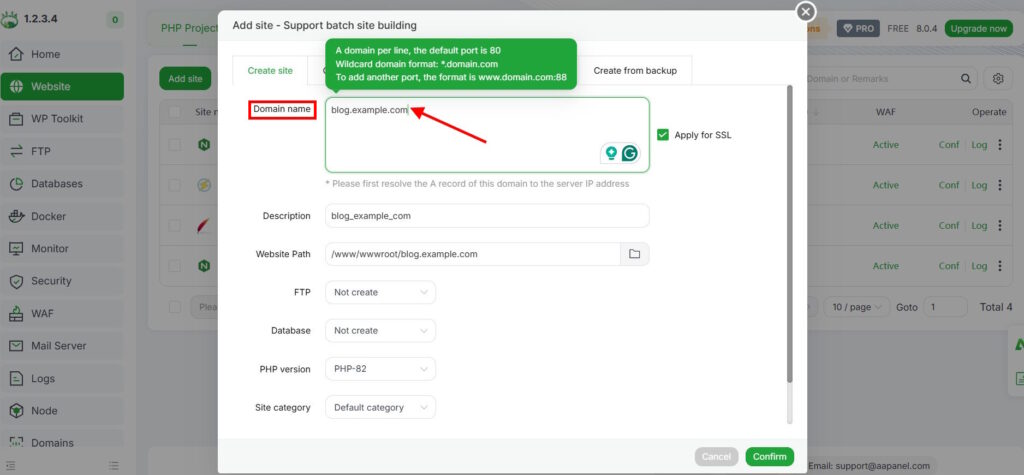
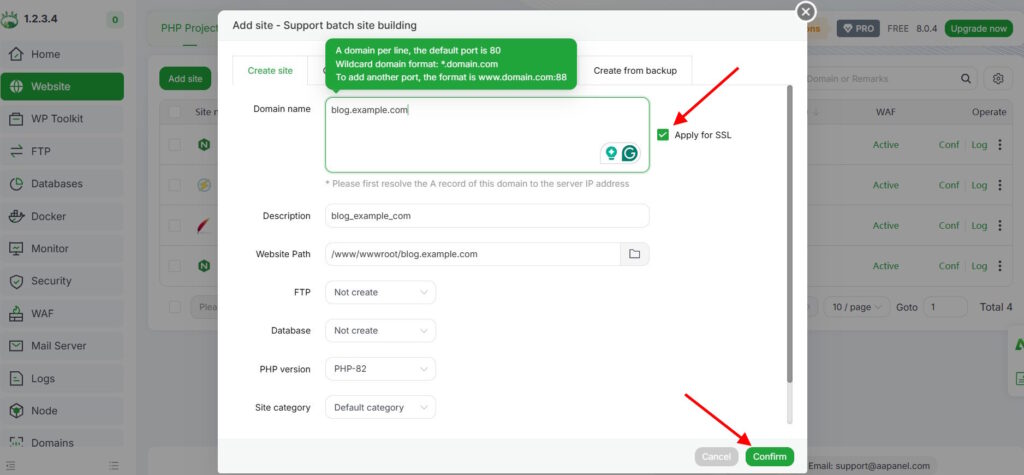
A pop-up window will appear. In the Domain Name field, enter your subdomain using the following format: sub.domain.name
If you wish, you can enable SSL by marking the checkbox on the right. Afterwards, click on the green Confirm button.
Step 3
You’ll simply need to wait a few seconds for the processing to be completed.
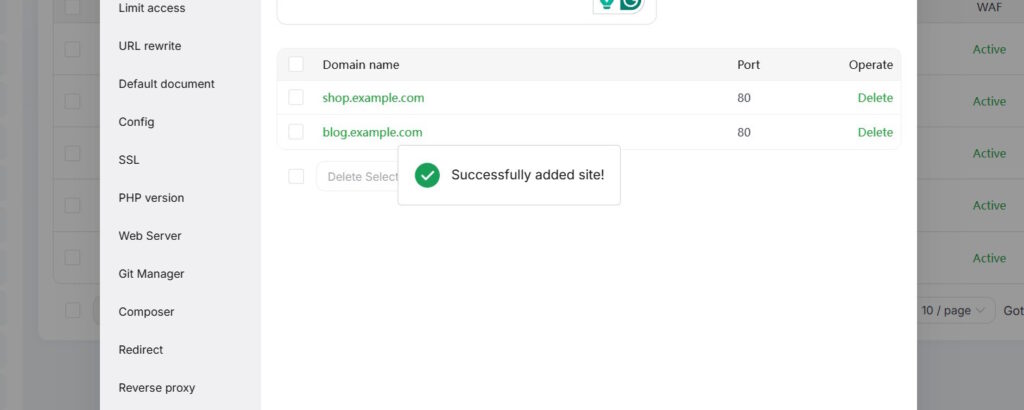
At last, you should see an alert stating that you’ve successfully created a new subdomain, as shown in the following picture.
Setting up the DNS Record
When creating a subdomain, you may need to configure an A-record for it. This may be automatically done if you're using aaPanel's DNS service.
Otherwise, you'll have to do it manually. In that case, visit your DNS provider and create an A-record for the new subdomain pointing to your server's IP address.
Note that DNS propagation might take up to 24 hours.
Performing a Test
Finally, you can run a test to see whether your subdomain works fine. The simplest way to do this is to enter the URL into your web browser.
If you've set up everything correctly, you should see the website or content associated with that subdomain.
How to Delete a Subdomain in aaPanel?
If you wish to delete a subdomain in aaPanel, follow these steps.
Step 1
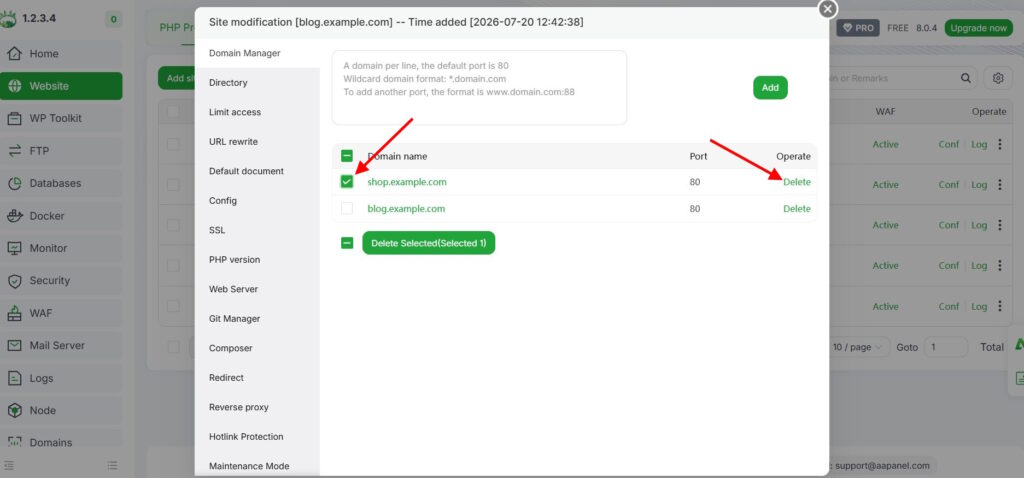
Again, you’ll start by logging in to aaPanel and navigating to the Website section. Find your domain and click on it.
Step 2
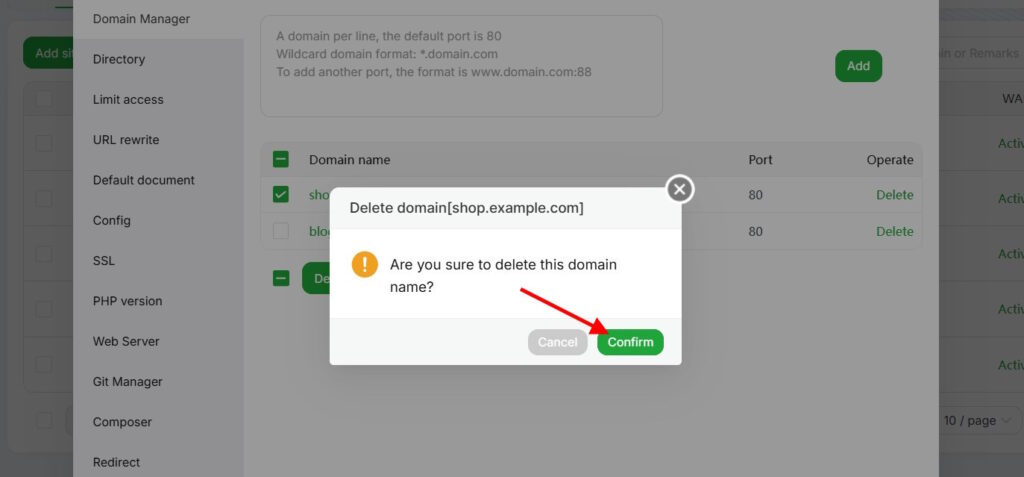
Mark the checkbox next to the subdomain you want to remove and then click the Delete link under Operate or the Delete Selected button just below the listed domains.
Step 3
You’ll see a pop-up window asking you to confirm your action. Just press Confirm. With that done, you’re all set.
Finally, if you experience difficulties creating or deleting your subdomains, contact your hosting provider for help.
Conclusion
Having a user-friendly website is key for any online business. The steps that we shared in this guide will help you create and delete subdomains in aaPanel, allowing you to tailor your digital presence however you wish.
We also have a guide for HestiaCP users, as well as more practical advice on how to install WordPress using aaPanel.
Use this knowledge to shape your online space in line with your goals and offer your visitors a flawless browsing experience.
Author
Monica Jansen
Monica Jansen is a seasoned tech writer focused on web hosting and cybersecurity. She loves doing deep dives and whittling down difficult topics into simple and succinct concepts. Whether she is covering firewalls or different hosting plans, she always strives to provide clear guides that website owners of all skill levels can follow.
Add your comment
Get content delivered straight to your inbox



Your data.
Your choice.
Work with the best of the best — your projects deserve it.